Purchases
Buy from suppliers, receive stock, track what you owe, and keep your inventory up to date — all in one structured flow.
What is a Purchase?
A Purchase records the buying of goods from a supplier. It captures everything about a single delivery: which products were received, at what cost, from which supplier, and how much you still owe them.
Think of each Purchase as one supplier invoice. When you confirm and receive it, your inventory is updated automatically using FIFO costing — meaning the cost of each item sold is calculated from the oldest stock batch first.
Purchases List
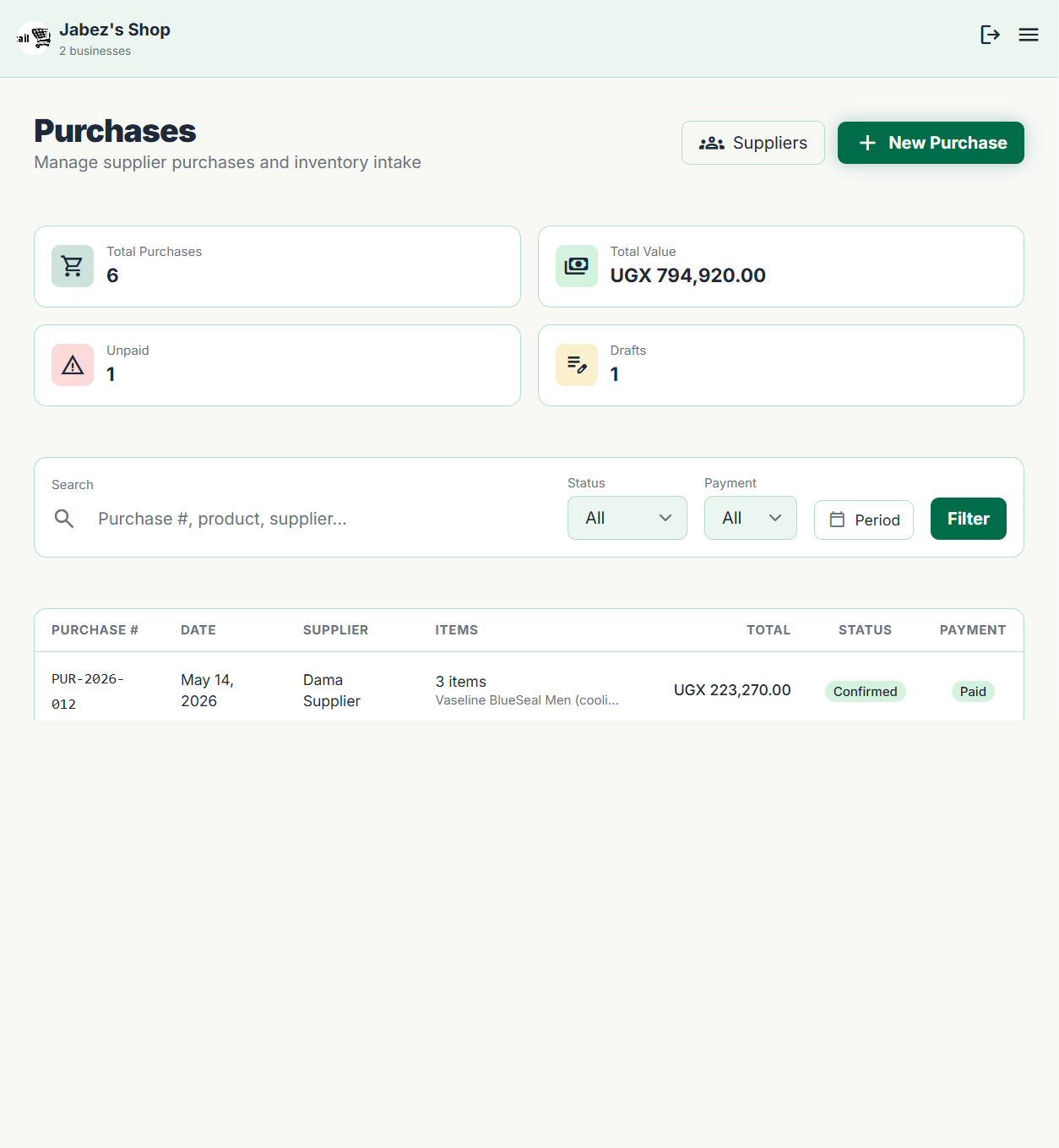
The Purchases page shows all your supplier deliveries. Summary cards at the top give you a quick financial snapshot:
Total Purchases
Value of all purchases in the selected period.
Amount Paid
Total paid to suppliers so far.
Outstanding
What you still owe across all suppliers.
Filter the list by supplier, date range, or payment status (fully paid, partially paid, unpaid). Each row shows the supplier name, date, total value, and balance due.
Creating a Purchase
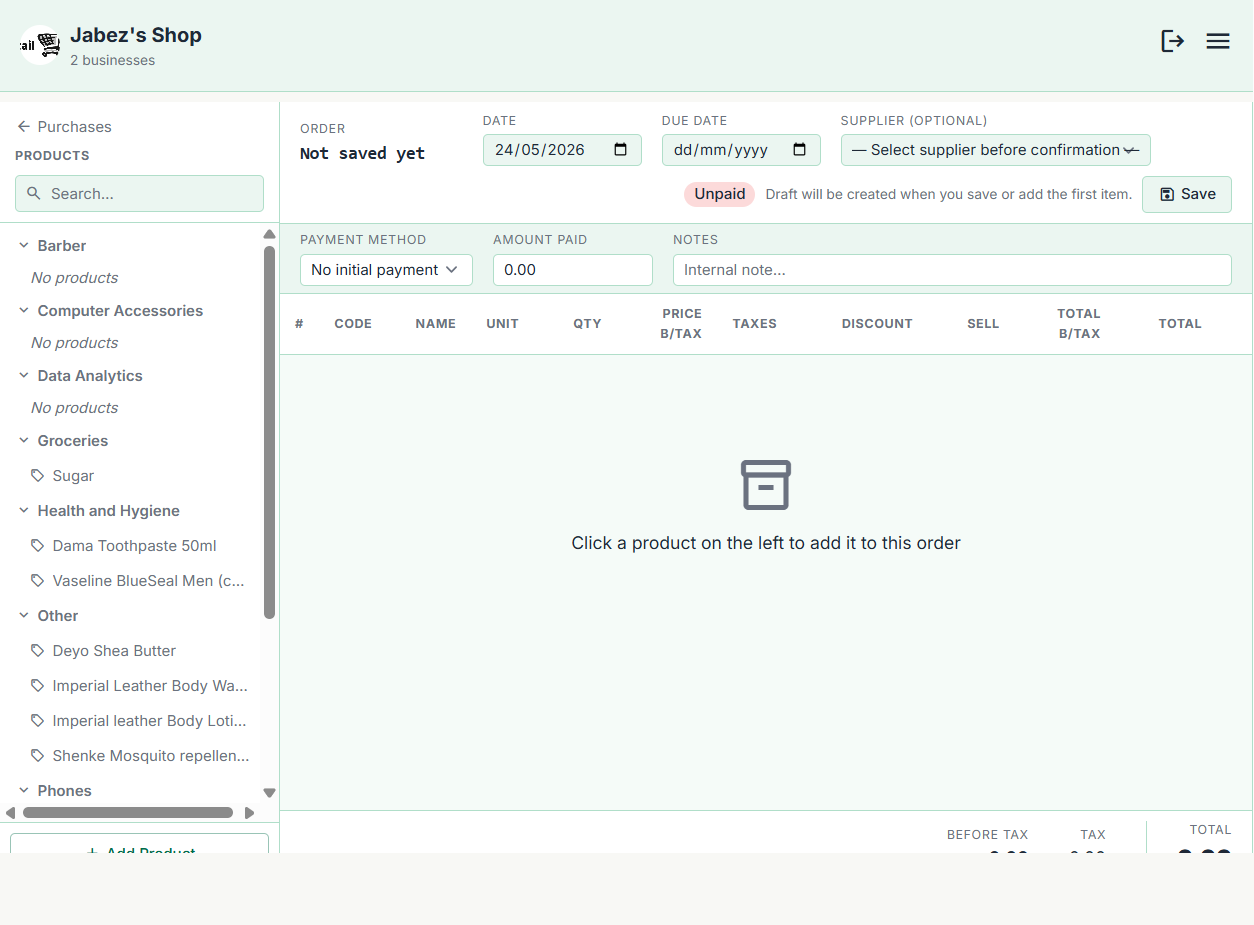
Click + New Purchase from the Purchases page. The form uses a split layout — your product catalogue on the left, the purchase order building on the right.
-
1
Select a supplier
Choose from your supplier list, or create a new supplier on the spot. The supplier you pick is linked to this purchase permanently for tracking and reporting.
-
2
Add products
Click products in the left panel to add them to the purchase. For each product, set the quantity received and the cost price per unit for this delivery.
-
3
Set the purchase date
Defaults to today. Change it if you're recording a delivery that arrived on a different date.
-
4
Add a note (optional)
Record the supplier's invoice number or any other reference that helps you match this purchase to their paperwork.
-
5
Save as draft
The purchase is saved but stock is not yet added. Review everything before confirming.
You can add products from multiple categories in a single purchase — just as you'd receive a mixed delivery from one supplier.
Confirming & Receiving
Once you're satisfied that the purchase details are correct, click Confirm & Receive. This single step does two things at once:
Stock is added
The quantities you entered are added to each product's inventory immediately.
Payable is created
The total cost is recorded as money owed to the supplier and appears in your outstanding payables.
How Inventory is Affected
Every confirmed purchase creates a new FIFO batch for each product received. Here's what that means in practice:
- check_circle Stock is added at the cost price you entered for that delivery.
- check_circle When a sale is made, the oldest batch is consumed first (FIFO). This gives you accurate gross profit margins.
- check_circle Each batch's remaining stock is visible on the product detail page, so you can see how many units from each delivery are still unsold.
If you received the wrong quantity by mistake, you can edit the purchase before confirming it. Once confirmed, any corrections must be done through an adjustment.
Purchase Detail Page
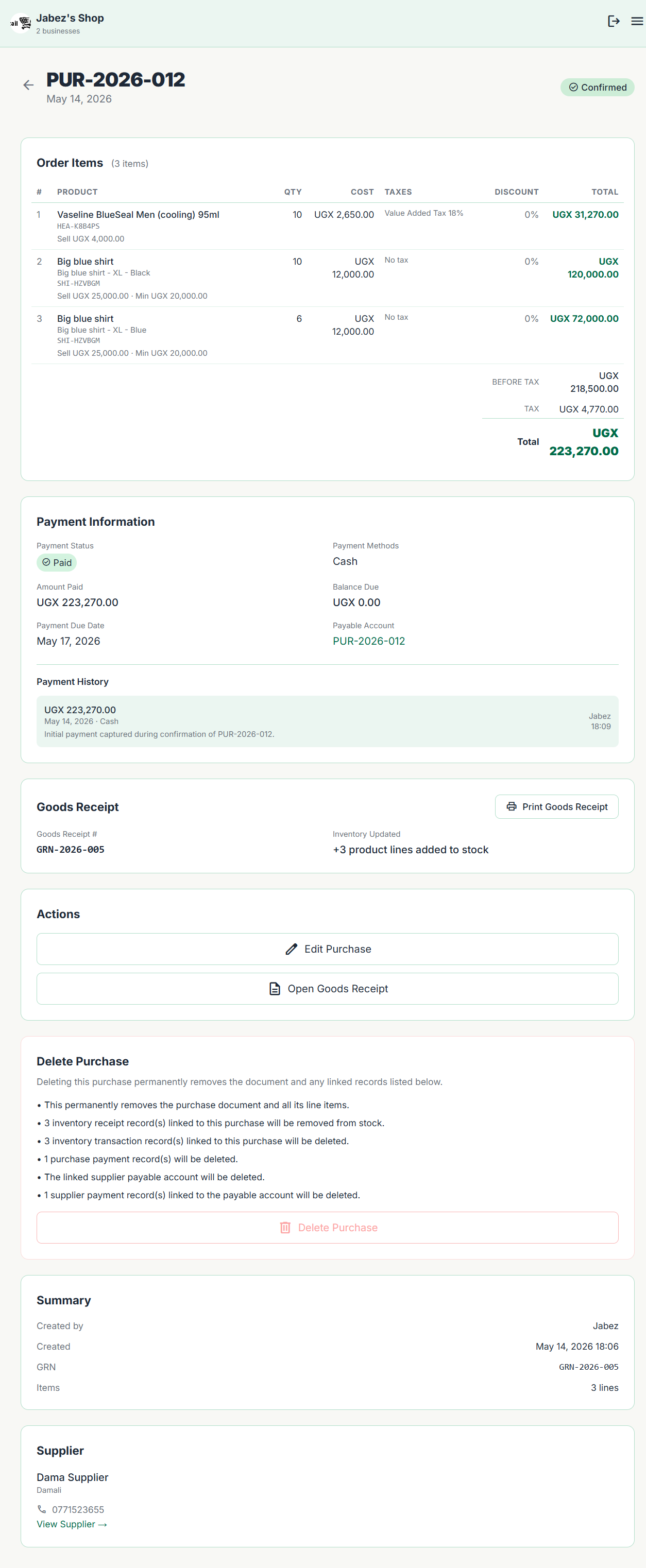
Click any purchase to open its full detail view. Here you can see everything about that delivery:
- list_alt All line items — product names, quantities received, and cost prices.
- payments Payment history — every payment made against this purchase, and the outstanding balance.
- picture_as_pdf Download the Goods Receipt Note (GRN) as a PDF.
Recording Supplier Payment
When you pay a supplier — in full or in part — record it on the purchase detail page by clicking Record Payment.
-
1
Select the payment method (cash, mobile money, bank transfer).
-
2
Enter the amount you're paying now. It can be a partial amount.
-
3
Add a reference note if you want (e.g. mobile money transaction ID).
-
4
Save. The outstanding balance updates and the payment appears in the payment history.
You can record multiple payments against the same purchase until the balance reaches zero. The purchase status will automatically change to Fully Paid.
Goods Receipt Note (GRN)
Every confirmed purchase automatically generates a Goods Receipt Note. A GRN is a printable document that serves as your official record of what was received from the supplier.
The GRN includes:
- check_circle A unique reference number (format: GRN-YYYY-NNN).
- check_circle Supplier name and contact details.
- check_circle Date of receipt.
- check_circle All items received — with quantities and cost prices.
- check_circle Total value and payment status.
Download it as a PDF from the purchase detail page and keep it for your physical records or share it with your supplier to confirm receipt.
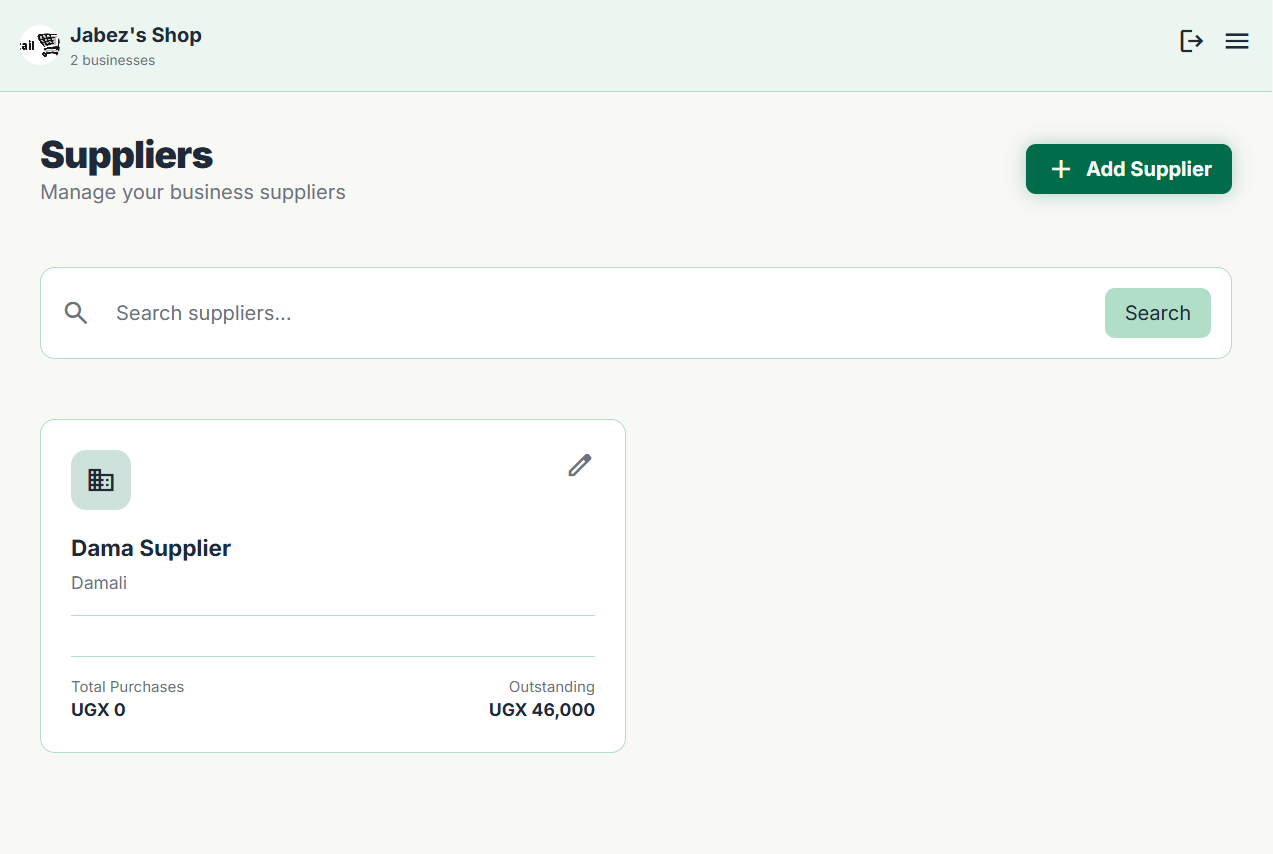
Managing Suppliers
Your supplier database lives under Purchases → Suppliers. For each supplier you can store:
- business Business name, contact person, phone, and email.
- location_on Physical or postal address.
- history Full purchase history — every delivery and payment recorded against this supplier.
Click any supplier in the list to open their profile. The profile shows their total purchase value, how much you've paid, and what's still outstanding — all at a glance.