Products
Everything you need to know about setting up and managing your product catalogue — from adding your first item to assigning product taxes and tracking stock by variant, batch, and expiry date.
The Products Page
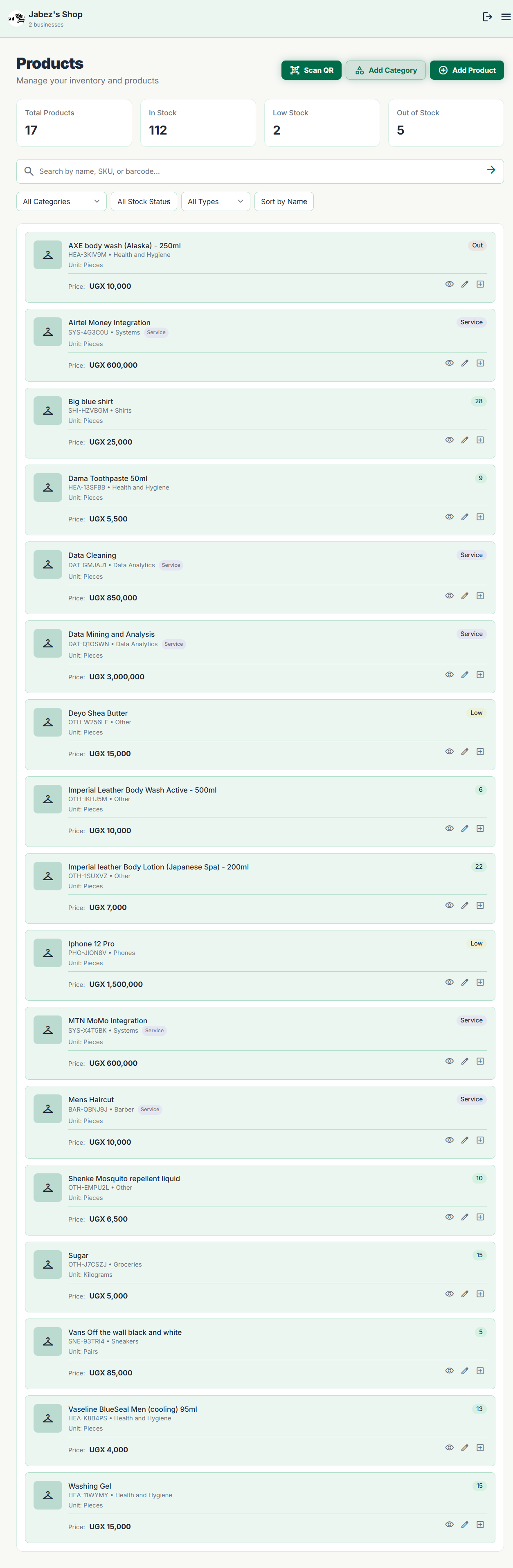
The Products page is your full catalogue view. Every item in your shop appears here. You can see each product's name, category, stock level, and selling price at a glance.
At the top of the page there are three summary cards:
Total Products
The total count of all products in your catalogue.
Inventory Value
The total cost value of all stock currently on hand, based on purchase prices.
Low Stock Alerts
Products that have fallen below their reorder threshold and need restocking.
You can search and filter the list by category, and sort by name or stock level. Products showing a low stock warning are highlighted so you can act quickly.
Product Types
MyShop supports three types of products, each designed for a specific kind of item you sell.
Simple Product
A single item with one price and one stock count. Perfect for everyday goods where there are no size, colour, or other variations — for example, a bar of soap or a bag of rice.
Variant Product
An item that comes in multiple versions, such as different sizes, colours, or materials. Each combination (e.g. T-Shirt / Blue / Large) gets its own stock count and can have its own price. Variants are tracked separately so you always know exactly how much of each version you have.
Service
A non-physical item such as a delivery fee, installation charge, or consultancy. Services have no stock — they can be added to any order or sale without affecting inventory.
Adding a Product
To add a new product, click the + Add Product button at the top right of the Products page. A form will open. Work through the fields:
-
1
Product name
Give the product a clear, recognisable name. This is what staff will see when creating sales and what appears on invoices.
-
2
Product type
Choose Simple, Variant, or Service. The rest of the form changes based on what you pick.
-
3
Category
Assign the product to a category so your catalogue stays organised. You can create new categories on the fly from within the form.
-
4
Selling price
The price customers pay. For variant products, you can set a different price for each variant.
-
5
Taxes and price mode
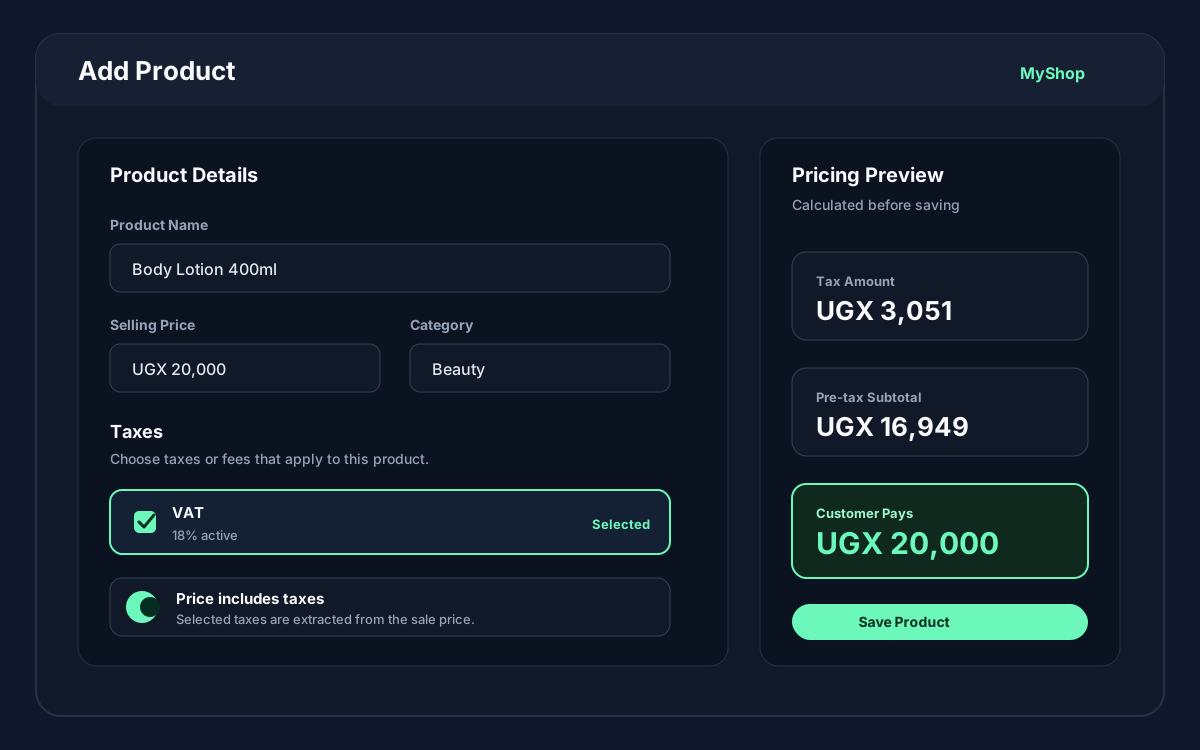
Choose the taxes or fees that apply to this product. Turn on Price includes taxes when the entered sale price already includes VAT or other selected taxes.
-
6
Review the pricing preview
MyShop calculates the tax amount, pre-tax subtotal, and customer total before you save, so you can confirm the price treatment is correct.
-
7
Initial stock & cost price (optional)
If you have stock on hand right now, you can enter the opening quantity and cost price. This records your first FIFO inventory batch automatically.
-
8
Reorder threshold
The minimum stock level before a low-stock alert is triggered. Set this to a comfortable buffer so you have time to reorder before you run out.
You can upload a product image and add a barcode or SKU in the same form. These are optional, but they make searching faster and labels more useful.
Product Taxes
Product taxes connect your catalogue to your sales, invoices, VAT reporting, and balance sheet. Create tax rates in Settings → Taxes, then assign the relevant rates on each product.
Select applicable taxes
Use the product tax checkboxes to choose VAT or any other tax/fee that applies to this item. Disabled tax rates stay visible for history but are not available for new active selections.
Choose whether price includes tax
Turn on Price includes taxes when the price you type is already VAT-inclusive. Leave it off when selected taxes should be added on top of the sale price.
Use the pricing preview
The preview shows tax amount, pre-tax subtotal, and customer total. This helps owners confirm the saved selling price matches how prices are displayed in the shop.
Protected VAT rates also feed into VAT reporting, so collected VAT and purchase tax recoverable stay visible in Reports.
Product Variants
When you choose the Variant product type, you define the attributes that make each version different. An attribute could be Size, Colour, Material, or anything else relevant to your products.
After adding your attributes and their values (e.g. Size → S, M, L, XL), MyShop generates all possible combinations. You can then:
- check_circle Set a unique price per variant, or leave the same across all.
- check_circle Enter opening stock separately for each variant.
- check_circle Add a custom SKU or barcode per variant.
- check_circle Disable specific variants without deleting them if you stop selling a particular option.
Each variant maintains its own FIFO stock history. When you receive a new delivery, you add stock to the specific variant(s) you received.
Product Detail Page
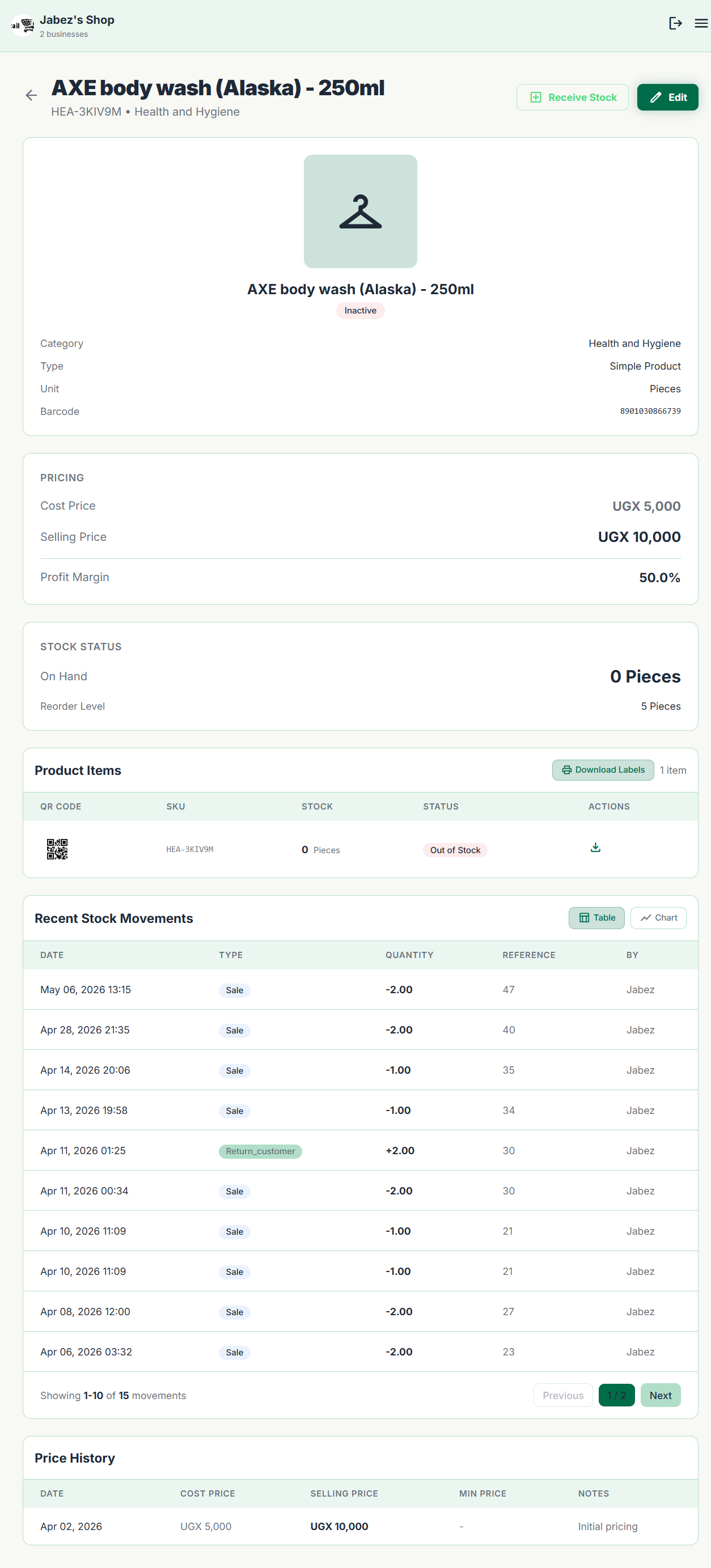
Click any product in the catalogue to open its detail page. Here you can see the full picture of that product:
- inventory_2 Current stock — Live count per variant (or total for simple products).
- history Movement history — Every stock change logged with its date, type (sale, receive, adjustment), and quantity.
- receipt_long Purchase batches — Each delivery recorded with cost price, quantity received, and remaining stock from that batch (FIFO).
- edit Edit button — Opens the edit form to change name, price, category, or threshold.
To mark a product as inactive (hide it from sales and searches without deleting it), use the Set Inactive toggle on the detail page. You can reactivate it any time.
Receiving Stock Manually
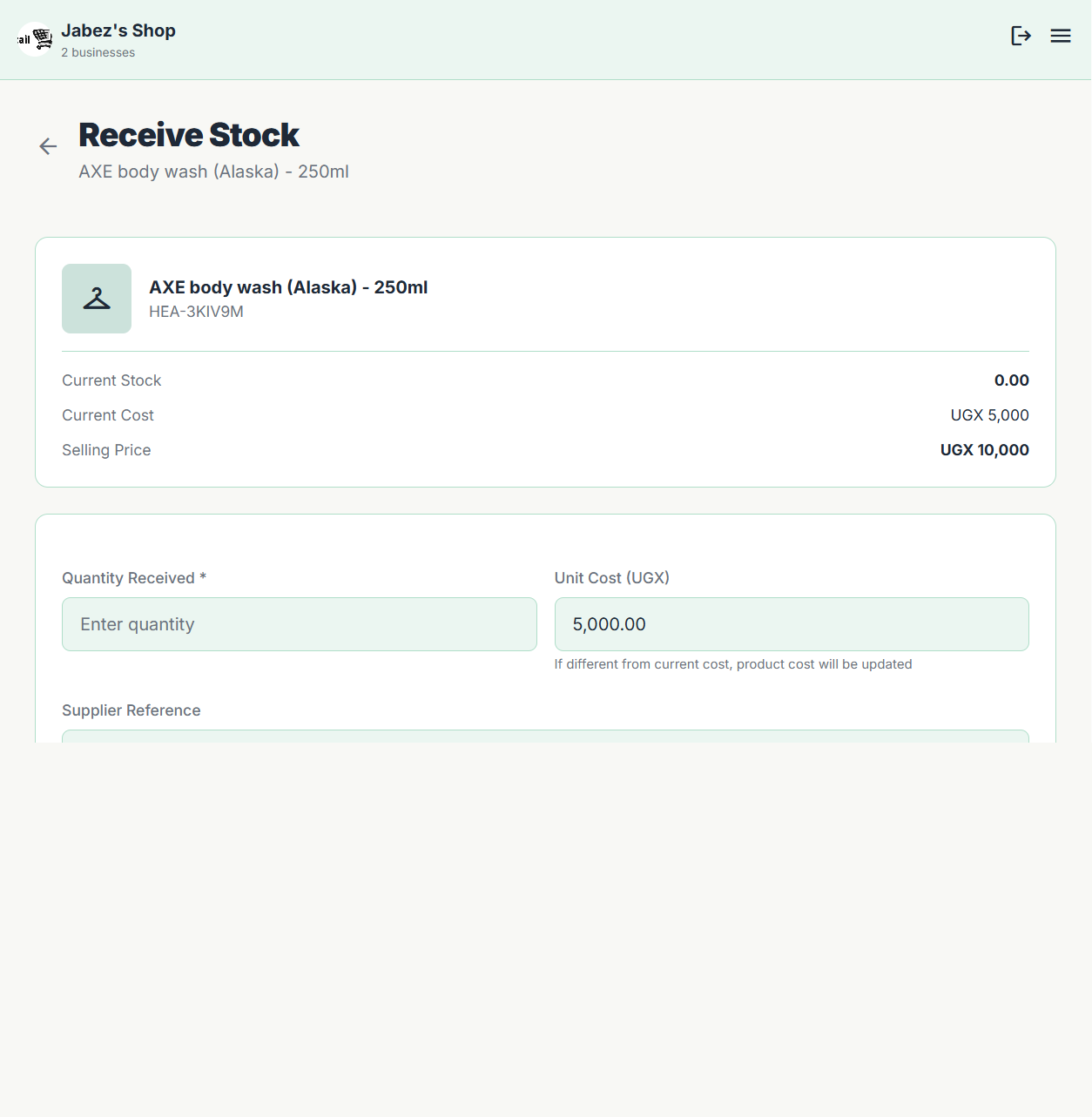
If you've already received goods directly from a supplier and just need to update the stock count — without going through the full Purchases module — you can use the Receive Stock button on the product detail page.
-
1
Open the product detail page and click Receive Stock.
-
2
Enter the quantity received and the cost price per unit for this delivery.
-
3
For variant products, enter the quantity for each variant you received.
-
4
Save — the stock is added immediately and a new FIFO batch is recorded.
For large orders from a supplier, use the Purchases module instead. It tracks supplier payments, purchase taxes, expiry dates, supplier batch or lot codes, generates a Goods Receipt Note (GRN), and keeps your payables up to date.
QR Codes & Labels
You can generate a scannable QR code or barcode for any product directly from the product detail page. This is useful for:
- qr_code_scanner Scanning products quickly at checkout instead of searching by name.
- label Printing shelf or product labels to stick onto packaging.
Click Generate QR / Label on the product detail page. A printable label sheet will open with the product name, price, and scannable code. Print it on any standard printer.
For variant products, each variant gets its own unique code so scanning always identifies the exact size or colour.
Quick Reference
| Task | Where |
|---|---|
| Add a product | Products → + Add Product |
| Assign product taxes | Products → + Add Product or Edit → Taxes |
| Edit name, price, or category | Product detail → Edit |
| Add stock manually | Product detail → Receive Stock |
| Track supplier batch or expiry | Purchases → Add Product line → Expiry Date / Batch Code |
| See stock movement history | Product detail → Movement tab |
| Hide a product without deleting it | Product detail → Set Inactive |
| Print a product label or QR code | Product detail → Generate QR / Label |
| See low stock alerts | Products page summary card or Reports → Inventory |